Show Google Calendar events in AnuCal
AnuCal can show your Google Calendar events on the year view. This works one way: events come from Google into AnuCal, and nothing you do in AnuCal changes Google Calendar.
Turn on the sync
- Click your profile picture at the top right of the app.
- Under Sync Settings, choose Google Calendar.
- Turn on Enable Google Calendar Sync.
- Under Select Calendars to Sync, tick the calendars you want to see.
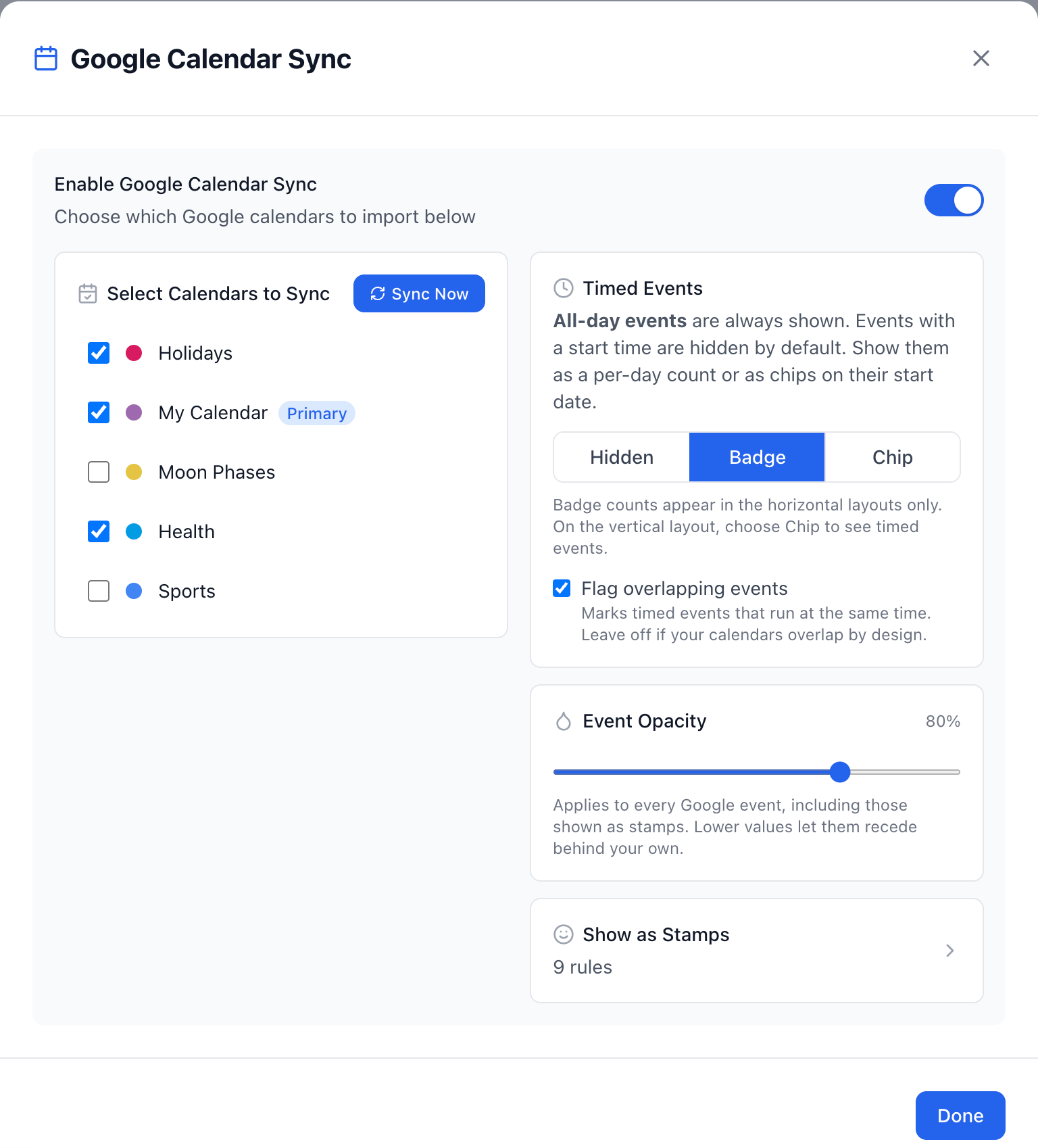
Your all-day events now appear on the year view, in their Google Calendar colors.
Show events with a start time
All-day events are always shown. Events with a start time, such as a 10:00 meeting, are hidden by default. With Premium, you can show them from Timed Events in the same window. Choose Badge for a count on each day, or Chip to see the events on their start date.
Change or edit a Google event
Edit the event in Google Calendar. AnuCal can't edit or delete Google events, and it can't send events you create in AnuCal to Google Calendar.
If you don't see your events
- New events are missing. Open the same window and click Sync Now.
- AnuCal asks for calendar access. Click the button in that window to sign in with Google again, and allow calendar access on Google's screen.
- A calendar isn't listed. Check that it appears in Google Calendar under the Google account you use for AnuCal.
If the events still don't appear, click Help at the bottom right of the app and send us a message.